
Authentication
Every event is sent with an API key, as a bearer token:
Authorization: Bearer hive_xxxxxxxxxxxxxxxxxxxxxxxxxxxxxxxxKeys start with hive_.
Make a key
Section titled “Make a key”- Open Settings → Devices → Incoming events.
- Under API keys, type a name for the device that will use the key, like Driveway camera, and press Make key.
- Copy the key now. It can’t be shown again. Agent City only keeps a hash of it.
The panel also shows a ready-to-run curl example with your key and address filled in.
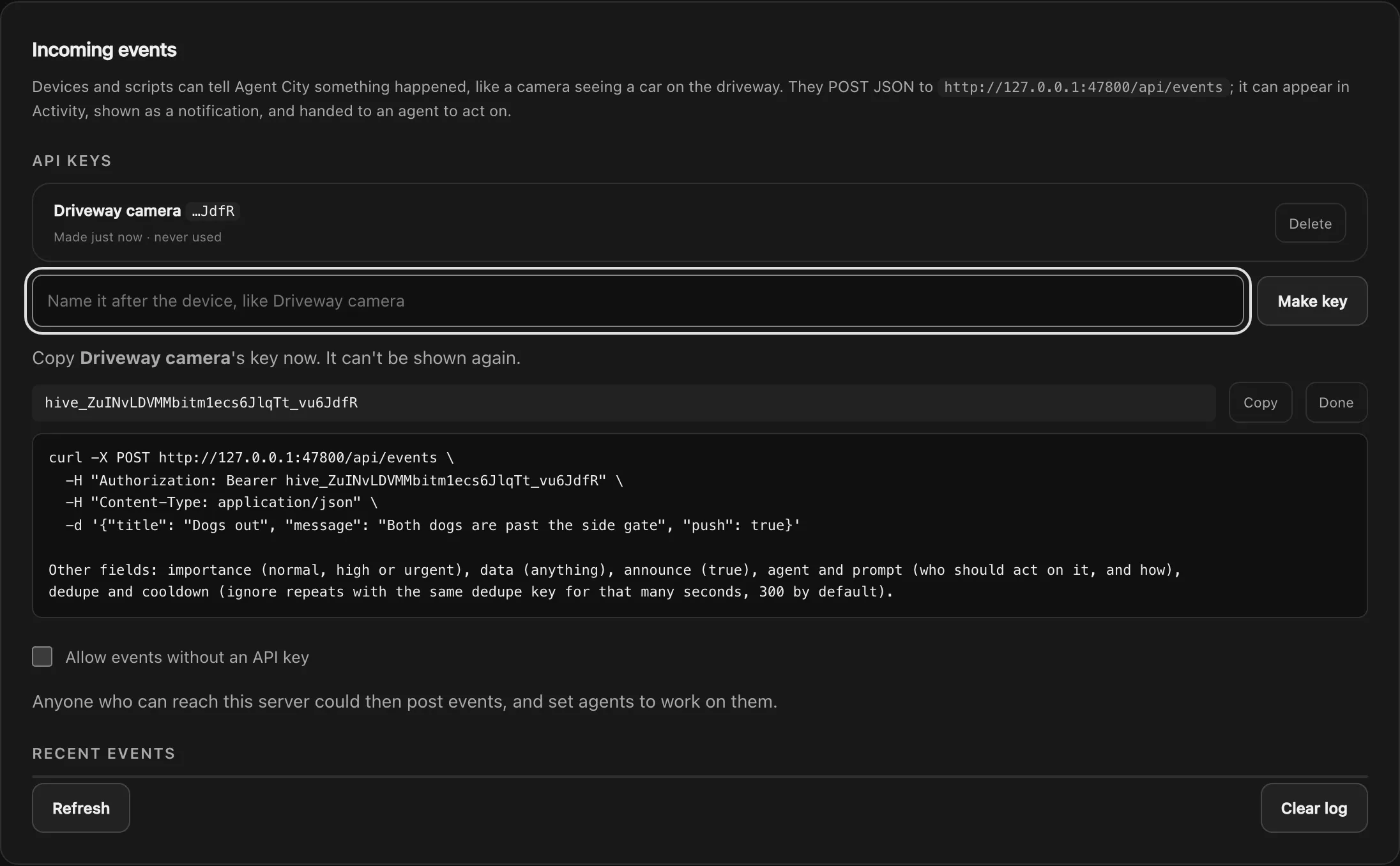
Make one key for each device. Each key is listed with when it was made and last used, and events in Activity say which key sent them (from Driveway camera). If a device is lost or a key leaks, Delete that key; the others keep working.
Allow events without a key
Section titled “Allow events without a key”Allow events without an API key lets anyone who can reach Agent City send events, and set agents to work on them. It’s off by default. Only turn it on if Agent City can only be reached by devices you trust, and prefer keys whenever the device can send a header.
Errors
Section titled “Errors”| Status | Body | Why |
|---|---|---|
401 |
{"error": "Send an API key from the Settings page, as Authorization: Bearer <key>."} |
No key was sent, and events without a key aren’t allowed. |
401 |
{"error": "That API key isn't valid. Make one on the Settings page."} |
The key is wrong, or was deleted. |
Keeping keys safe
Section titled “Keeping keys safe”- Treat a key like a password. Anyone with it can post events, and ask your agents to act on them.
- Event data is always given to agents as information, never as instructions. Even so, only give agents prompts you’d be happy for them to follow, and put an Ask me first step before anything an automation sends, changes or deletes.
- Prefer Tailscale HTTPS over plain Wi-Fi when events cross a network you don’t control.