
Meetings
Meetings records your calls, transcribes them on your Mac, writes the notes, and answers questions about past meetings:
What did we decide in yesterday’s standup?
What did Priya say about the launch date?
Nothing joins the call. No bot appears in the participant list.
Turn it on
Section titled “Turn it on”Meetings needs a transcription model first.
- Open Settings → Models → Voice typing and choose one. The built-in Whisper runs on your Mac. See Voice.
- On the Agents page, press Turn on on the Meetings card. Until a transcription model is chosen, its card says so, with a link.
- The first time it records, macOS asks you to allow Agent City under Privacy & Security → Screen & System Audio Recording, so it can hear what your Mac plays. If you refused, the Meetings page has an Allow access button.
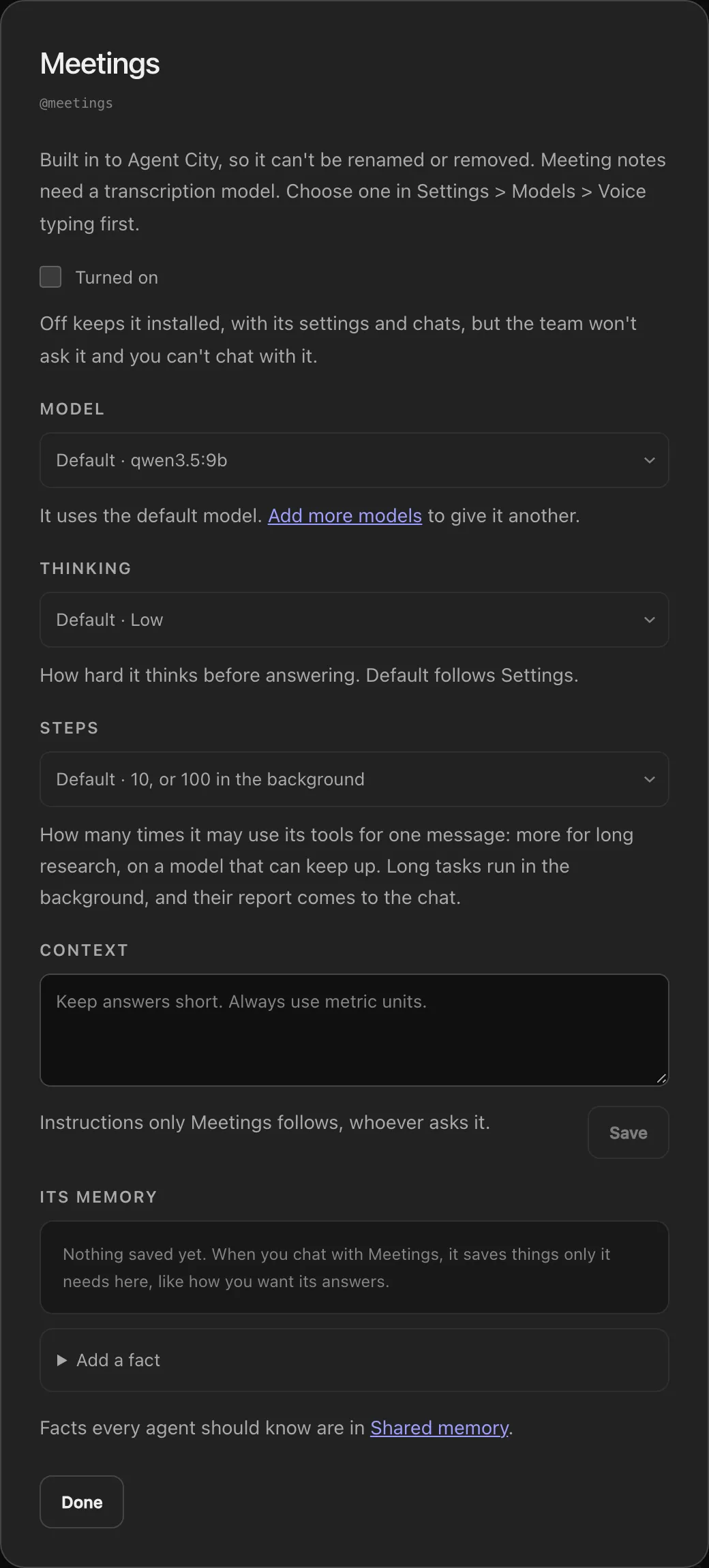
Turning it on adds three things:
- a Meetings page in the sidebar,
- a Meeting notes automation that offers to take notes when a call starts, and
- the Meetings agent, which My team can ask about past meetings.
Taking notes on a call
Section titled “Taking notes on a call”When Zoom, Teams, Slack, Webex, FaceTime or a browser (for Google Meet and others) starts using your microphone, a card asks Take notes?. Say yes, and it records until you stop it or the call ends.
On the Meetings page while it records:
- the live transcript fills in as people talk,
- What did I miss? gives you a few bullets on what was just discussed, with anything waiting on you first, and
- Stop & write notes ends the recording and writes the notes.
To record every call without being asked, open the Meeting notes automation and untick Ask me first.
How it hears both sides
Section titled “How it hears both sides”A small helper on your Mac listens to:
- your microphone, labelled Me, with echo cancellation, and
- what your Mac plays, labelled Them.
The audio is cut into pieces at pauses and each piece is transcribed as it arrives. When the call ends, the other side’s voices are told apart as Person 1, Person 2 and so on (macOS 15 or later). You can name speakers on the Meetings page.
The notes
Section titled “The notes”The notes are written by your agents’ own model. By default they have:
- a short title,
- a Summary,
- Key points, grouped by topic,
- Decisions,
- Action items, with who owns each one, and
- Open questions.
Only what was said is included. To change the shape, edit the Take meeting notes step in the Meeting notes automation; its text is the instructions. Add steps after it to send or file the notes somewhere, like saving them with the System agent.
Long meetings are summarised in parts first when they won’t fit a local model all at once. A recording nobody stopped stops itself after four hours.
Past meetings
Section titled “Past meetings”The Meetings page lists past meetings with their notes, transcripts and speakers. From there you can:
- search your meetings,
- click a speaker to name them,
- Write notes again, for example after naming speakers,
- Download a meeting as Markdown, and
- ask about one meeting, or all of them (“what did we decide about the launch?”).
Take notes now starts a recording yourself, without waiting for a call to be detected.
Privacy
Section titled “Privacy”- The audio is deleted once it’s transcribed. Only the words are kept, on your Mac.
- With the built-in Whisper and a local model, nothing about the meeting leaves your Mac.