
Agents
The Agents page lists every agent on your team.
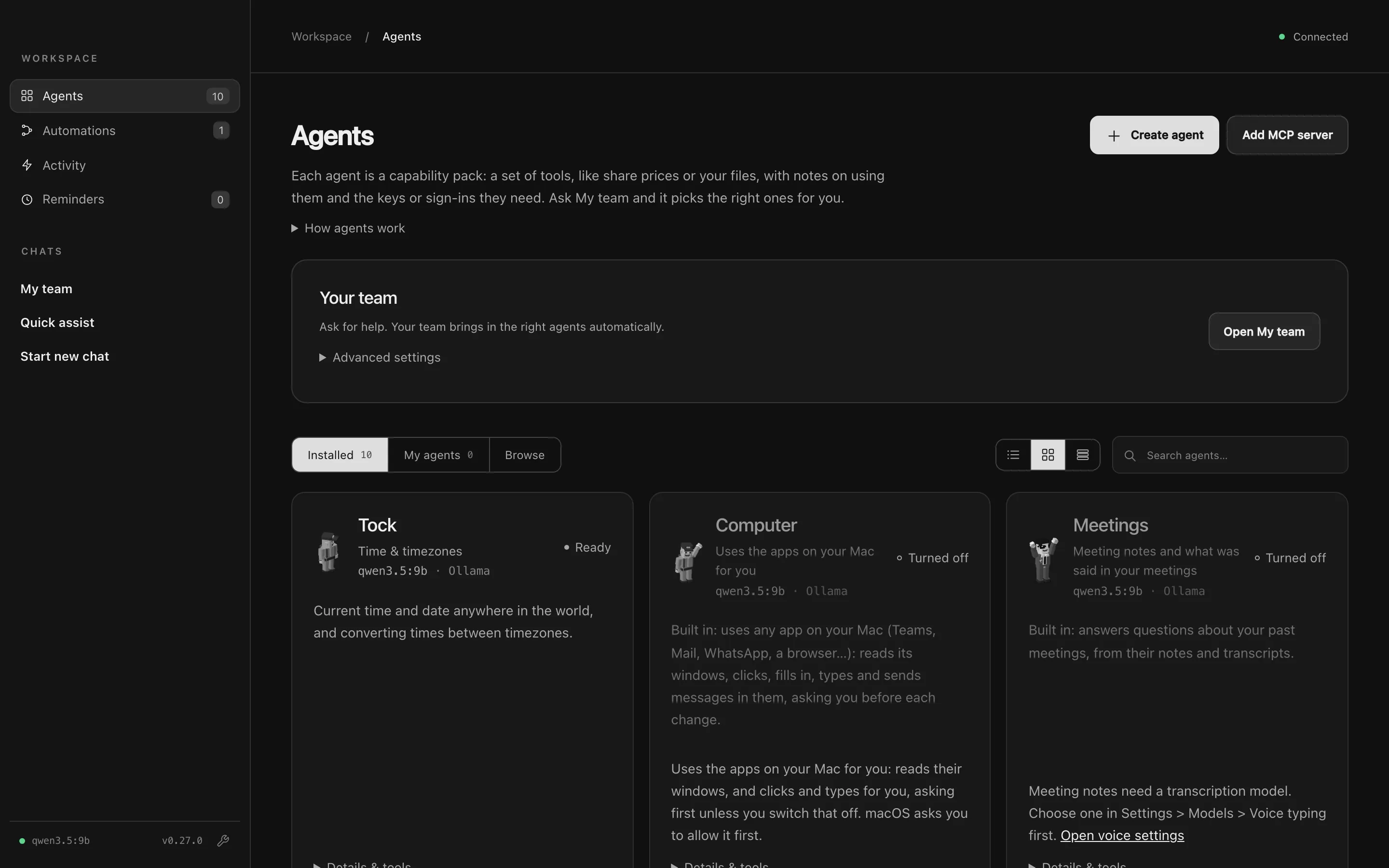
The Agents page
Section titled “The Agents page”At the top:
- Create agent opens the Agent builder.
- Add MCP server connects an MCP server as an agent.
- Your team links to My team, and Advanced settings sets the coordinator’s own model and thinking.
Below that are three tabs:
| Tab | Shows |
|---|---|
| Installed | Every agent on your team, with a count of updates waiting. |
| My agents | The agents you built and your MCP servers. |
| Browse | Agents in your agent sources, ready to review and install. |
The buttons beside the search box switch between a compact list, cards and a detailed view. Each agent shows its model and status:
| Status | Meaning |
|---|---|
| Ready | Available to My team and to chat with. |
| Turned off | Installed, but nobody can ask it. Turn on to use it. |
| Not connected / Needs | It’s waiting for a sign-in or an API key on Connections. Its tools won’t run until then. |
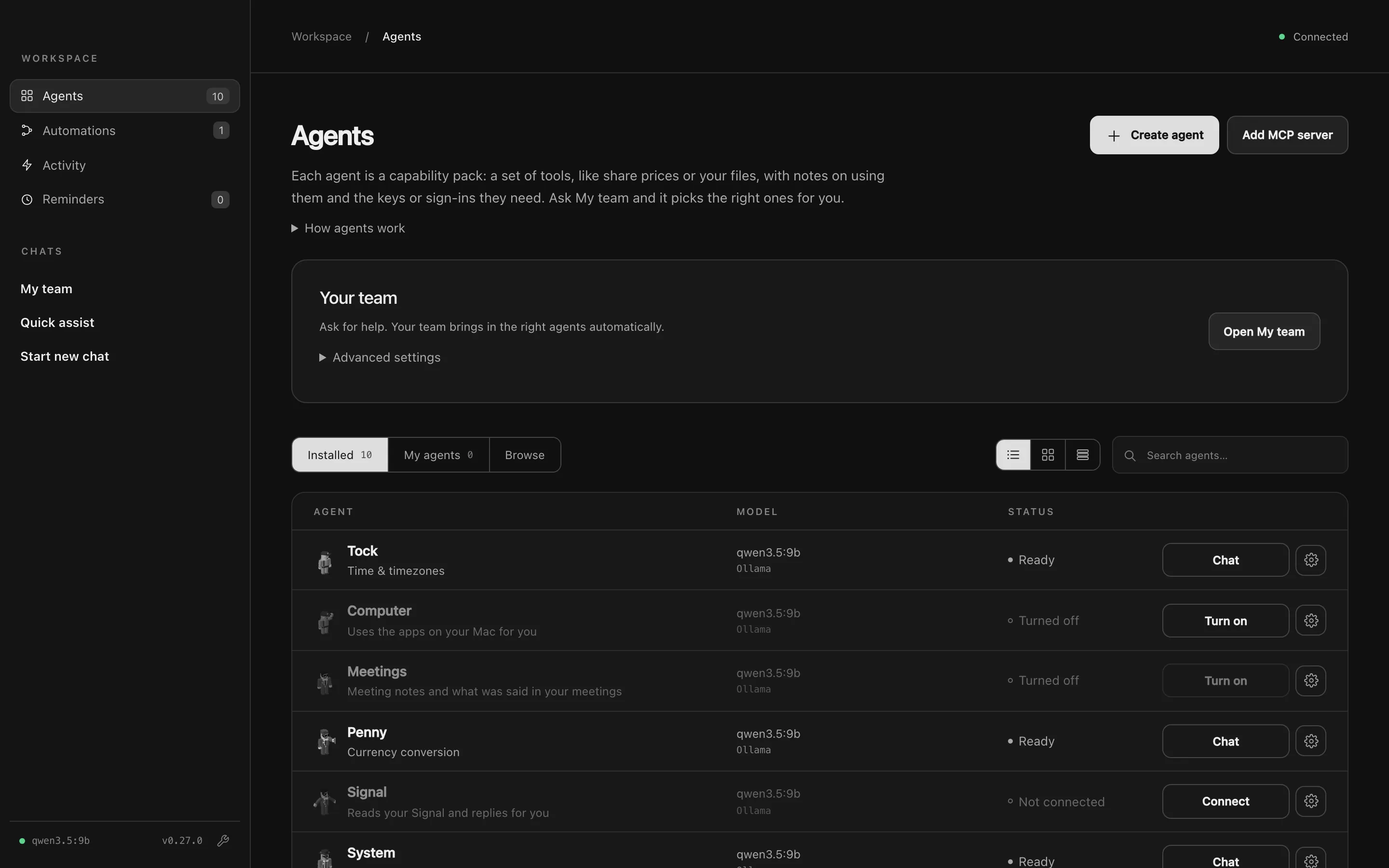
Press Chat to start a direct chat with an agent.
Agent settings
Section titled “Agent settings”The cog on an agent opens its settings.
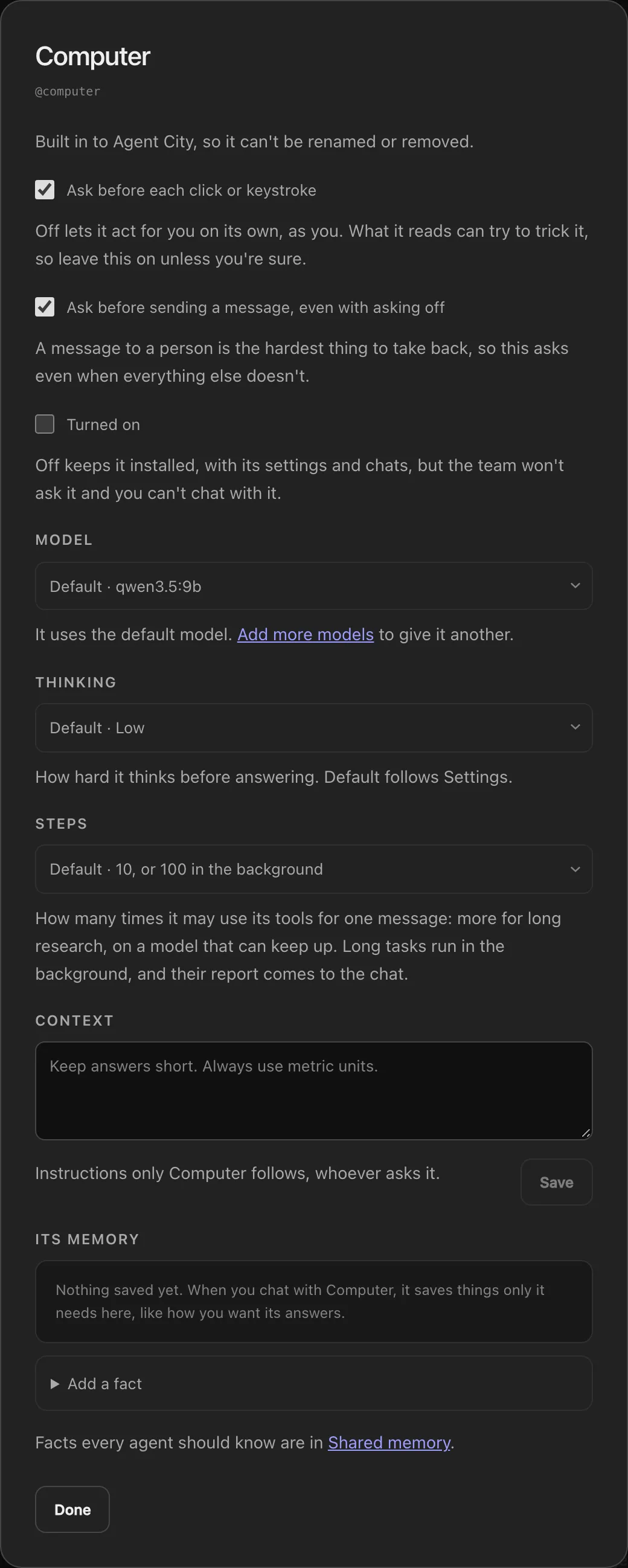
| Setting | What it does |
|---|---|
| Turned on | Off keeps the agent installed, with its settings and chats, but the team won’t ask it and you can’t chat with it. |
| Model | Which model this agent uses. Default follows Settings → Models. See More models. |
| Thinking | How hard it thinks before answering. Default follows Settings. |
| Steps | How many times it may use its tools for one message. By default 10 in a chat, and more for long tasks running in the background. |
| Context | Instructions only this agent follows, whoever asks it: “Keep answers short. Always use metric units.” |
| Its memory | Facts only this agent sees, like how you want its answers. Facts every agent should know go in Shared memory. |
| Starter automations | Some agents offer ready-made automations. Add saves a paused copy for you to review. |
| Rename | Changes the name shown in chats. Its handle (like @clock) stays the same, so chats and automations keep working. |
| Remove agent / Uninstall | Takes the agent off your team. Built-in agents can’t be removed. |
Some agents add switches of their own, like Ask before each click or keystroke on Computer.
Updating installed agents
Section titled “Updating installed agents”Agents installed from a source show Update available when their source changes. Review shows what changed, and Update installs it. Nothing updates without you.