Phones
Your phone can be a remote control for Agent City. Everything still runs on your Mac.
Pair a phone
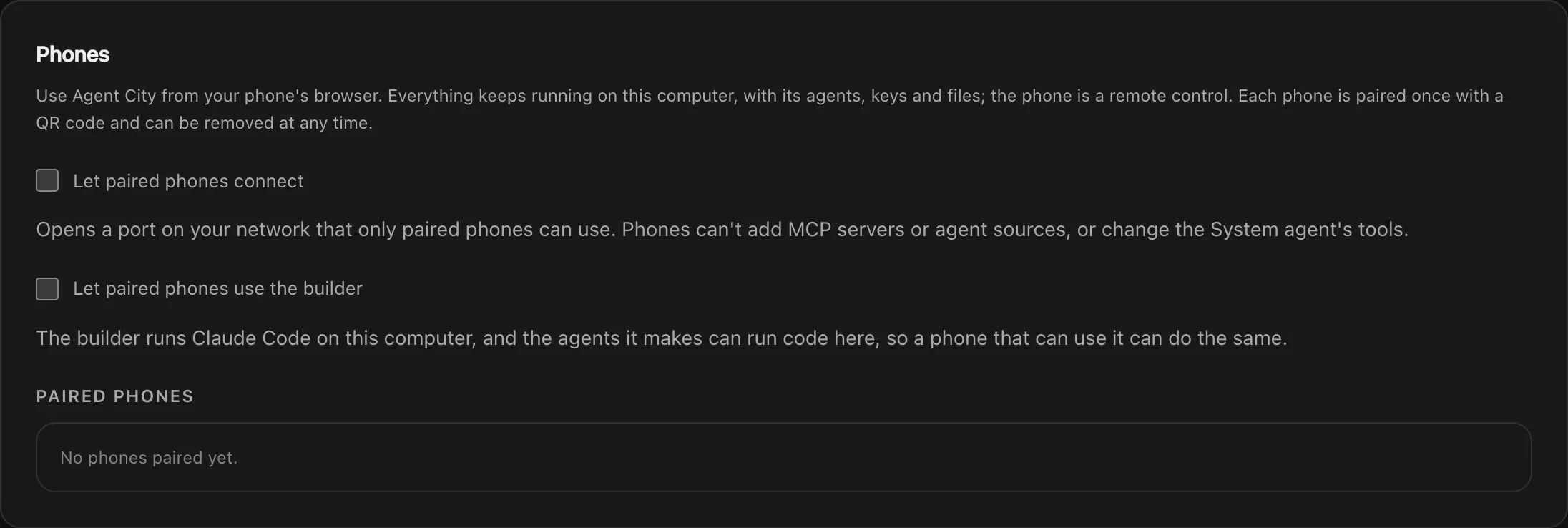
Section titled “Pair a phone”- Open Settings → Devices → Phones (or Pair a Phone… in the menu bar).
- Turn on Let paired phones connect. If macOS asks, allow incoming connections.
- Choose how your phone reaches your Mac:
- Wi-Fi: when both are on the same network.
- Tailscale: from anywhere on your tailnet, by your Mac’s
*.ts.netname. - Tailscale HTTPS: the same, over HTTPS (port 8443). Needed to add the page to your home screen as an app or to use the microphone.
- Press Pair a phone and scan the QR code with your phone’s camera. The code works once, for five minutes.
Each paired phone is listed with when it was last used. Remove cuts it off straight away.
What a phone can and can’t do
Section titled “What a phone can and can’t do”A phone can chat, check Activity, answer approvals and run automations. It can’t do anything that could run code on your Mac or that needs your Mac’s browser:
- use the Agent builder, add MCP servers or agent sources,
- change the System agent’s tools or turn off approvals,
- pair more phones, or
- sign in to services on Connections.
Several Macs
Section titled “Several Macs”A phone can pair with several Macs. Switch computer in its menu changes which one you’re using, and the top bar says which one you’re on.
Updating your Mac from a phone
Section titled “Updating your Mac from a phone”When there’s a new version of Agent City, a paired phone shows it too. Update Mac… asks first, then your Mac downloads, installs and restarts, and the phone reconnects.