Choose a model
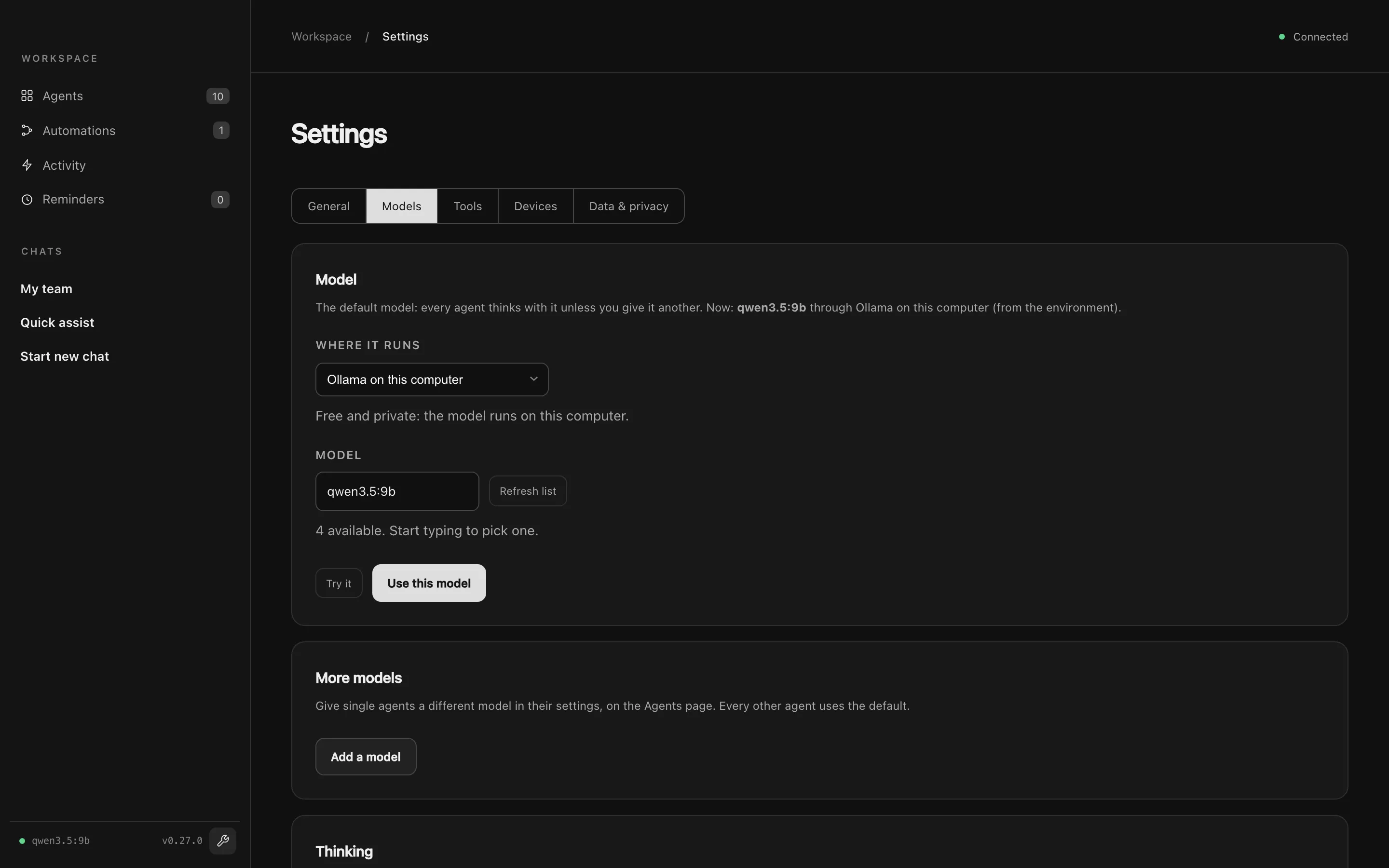
Every agent thinks with a language model. You choose it in Settings → Models. Any model that supports tool calling works.
Where the model runs
Section titled “Where the model runs”| Option | Cost | Privacy | Notes |
|---|---|---|---|
| Ollama on this computer | Free | Your chats never leave your Mac (agents’ tools still reach the services they use, such as a weather service). | The default. qwen3.5:9b is a good balance of speed and reliability. |
| OpenAI | Paid, per use | Sent to OpenAI | Paste an API key. |
| Anthropic | Paid, per use | Sent to Anthropic | Claude, through Anthropic’s OpenAI-compatible API. Paste an API key. |
| Another OpenAI-compatible server | Varies | Depends on the server | LM Studio, vLLM, OpenRouter, or any server with an OpenAI-style API. Give its address, a model name and a key if it needs one. |
To switch:
- Open Settings → Models.
- Under Where it runs, choose a provider and fill in the model (and key, for a cloud provider).
- Press Try it. Agent City sends one tiny request to make sure it works.
- Press Use this model. Every agent switches at once, with no restart.
Keys you enter here are stored on your Mac with your other keys and are hidden from chats and logs.
Using Ollama
Section titled “Using Ollama”Ollama runs open models on your Mac for free. Download Ollama, and the Setup check can start it and download the model for you.
We recommend qwen3.5:9b, the default, on a Mac with 16 GB of memory or more, and qwen3.5:4b on an 8 GB Mac. See Requirements for the options.
Let several agents work at once
Section titled “Let several agents work at once”By default Ollama answers one request at a time, so when My team asks two agents, the second waits for the first. To let two run side by side, run this in Terminal, then quit and reopen Ollama:
launchctl setenv OLLAMA_NUM_PARALLEL 2Each extra slot uses more memory, so start with 2. The setting lasts until you restart your Mac.
More models
Section titled “More models”The model above is the default: every agent uses it unless you give it another. To give some agents a different model, for example a cloud model for research and a local model for everything else:
- In Settings → Models → More models, press Add a model and set it up the same way.
- Open an agent’s settings (the cog on its card) and choose that model under Model.
Each agent’s card shows which model it uses. The sidebar shows which models are answering right now. Edit changes an added model in place, and removing a model puts its agents back on the default.
Thinking
Section titled “Thinking”Some models can think before they answer. Settings → Models → Thinking sets how hard: None, Low, Medium or High. Each agent can override it in its own settings.
On small local models, Low is the sweet spot. With None, small models sometimes answer without using their tools and make things up.
Working at once
Section titled “Working at once”Chats, automations, events and reminders can all run at the same time. How much really happens at once depends on where your model is:
- A model on your Mac or your network (Ollama, LM Studio, a
localhostor192.168…address) answers one run at a time. The others wait their turn, and the page says what each one is waiting for. Taking turns is quicker than two runs sharing a small local model. - A model on the internet (OpenAI, Anthropic, OpenRouter) answers up to 4 requests at once. Change that under Settings → Models → Working at once (1 to 8). More is faster when several things run, but uses up your provider’s rate limit sooner.
Next: Your first chat.