
Automations
Automations turn your agents into a team that works without being asked. An automation is a routine: something starts it, then steps run one after another, each one a job for an agent. The result is posted to Activity.
You don’t need to write any code. Describe what you want in plain English and Agent City drafts the steps. If it needs an agent you don’t have, the Agent builder can make it on the spot.
What you can automate
Section titled “What you can automate”| Starts | Example |
|---|---|
| Every weekday at 7 | Get the weather and the top headlines side by side, and write me a five-line brief. |
| Every Monday | Check competitor prices against last week, and only tell me if something changed by more than 5%. |
| When a camera sees a car | Look up the number plate and tell me who’s arrived. (Ingest API) |
| When Mum messages on Signal | Summarise it and remind me to reply at 6. |
| When the nightly backup fails | Tell me what went wrong, as an urgent alert. |
| When a call starts | Take meeting notes, then save them to my workspace. (Meetings) |
| By hand, or by asking | “Run my morning brief.” |
Automations run on the same model as your agents. With a local model, they run entirely on your Mac, on schedule, with nothing sent anywhere.
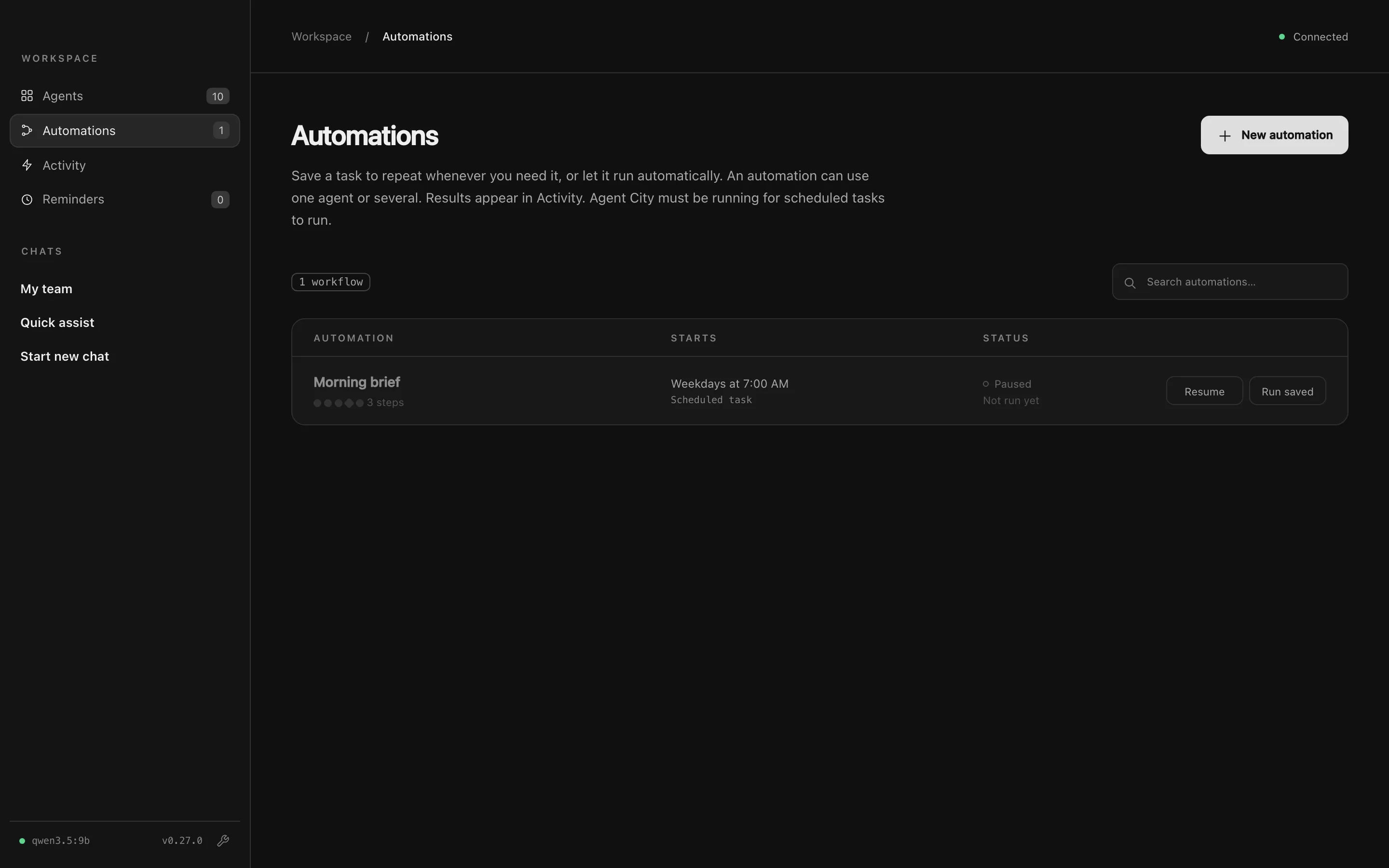
Agent City must be running for automations to start. It keeps running in the menu bar when you close the window. Turn on Open at Login so it’s always there.
Create an automation
Section titled “Create an automation”Press New automation. You can start in three ways:
- Describe it. Write what you want in plain English, like “Every weekday at 7, get the top AI headlines and the weather side by side, write me a short brief, and ask me before it’s saved to a file”, then press Draft it. Your agents’ own model drafts the steps for you to check. For trickier automations with branches and references, you can have Claude Code draft them instead, under Settings → Models → Drafting automations.
- Import a shared automation. Paste an automation someone exported as JSON and press Import it.
- From a chat. Make this an automation in a chat’s header turns that conversation into an automation draft.
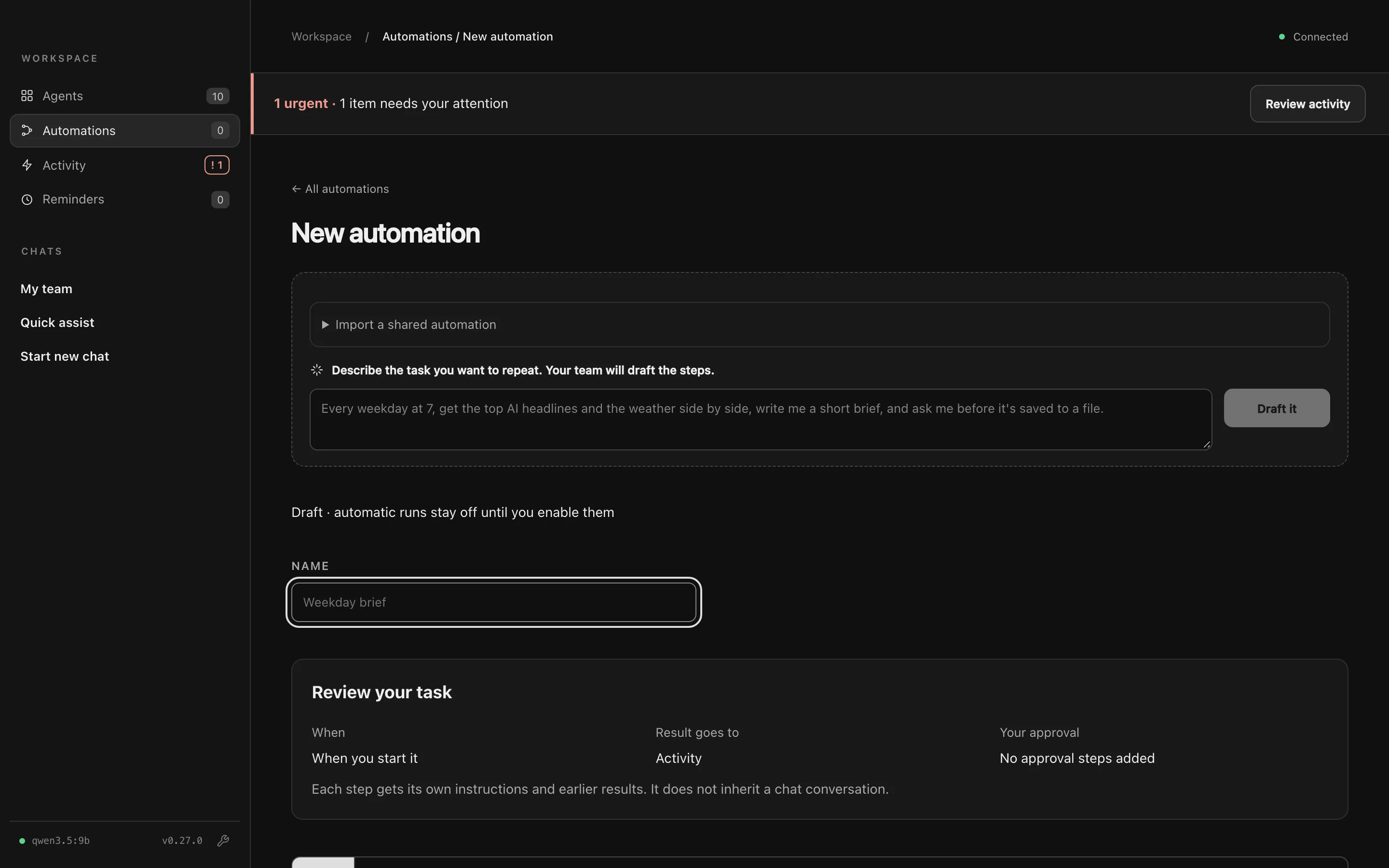
Nothing is saved until you choose. New automations start as drafts with automatic runs off.
If no agent you have can do a step, the draft names a new agent for it and offers Build, which has the Agent builder make it.
The editor
Section titled “The editor”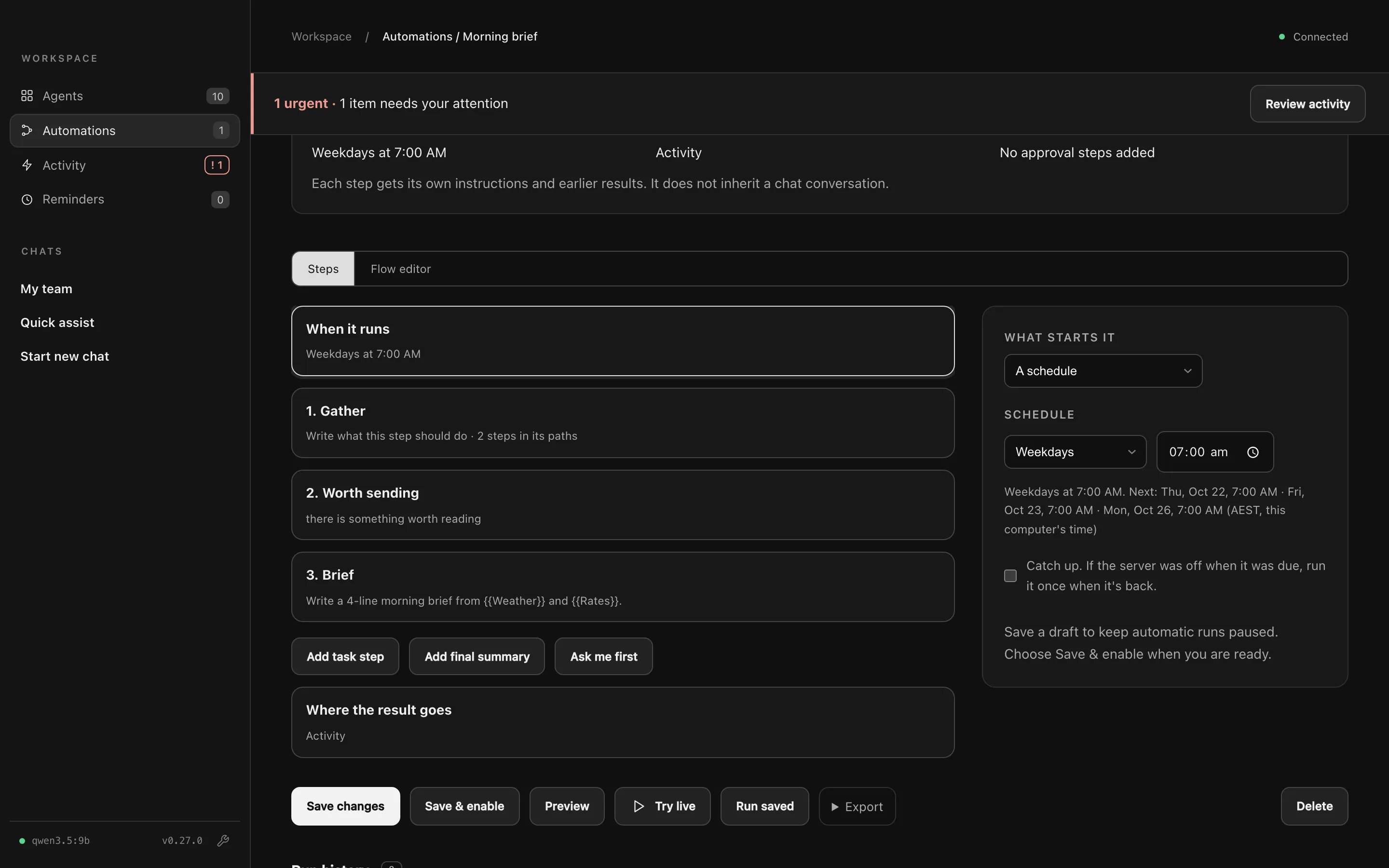
The editor shows the automation as readable steps. Select a step to edit it on the right. Flow editor shows it as a diagram instead, which is handy for branches and parallel work; the + on a line inserts a step there.
What starts it
Section titled “What starts it”| Start | Runs when |
|---|---|
| By hand | You press Run saved, or ask My team “run my morning brief”. |
| A schedule | Every few minutes, hourly, daily, on weekdays, on certain days, or a custom cron line. The next three run times are shown. |
| An incoming event | A device or script sends an event naming this automation. See Starting automations from the API. |
| Another automation | Another automation finishes, or fails. What it said, or what went wrong, is passed on. |
| A message arriving | A new message on Signal, Telegram or another listening agent. Narrow it by who it’s from, which chat, words it contains, or urgent messages only. |
| A call starting | A meeting app takes the microphone. Used by Meetings. |
Catch up (for schedules): if your Mac was asleep or Agent City wasn’t running when a run was due, it runs once as soon as it’s back.
| Step | What it does |
|---|---|
| Agent does something | An agent (or the coordinator) does what the step says, in a fresh conversation. It uses only its own tools unless you tick May ask other agents for help. |
| Write a final summary | Combines earlier results into one answer, without tools. |
| Only continue if… | A condition in plain English about the previous result. If it’s not true, the run stops quietly. |
| Ask me first | Posts an Approve / Skip card in Activity and waits (up to 24 hours). Put one before anything that sends, changes or deletes. |
| Branch: if… otherwise… | Picks one of two paths with a yes/no condition, then both carry on together. |
| Side by side | 2 to 4 lanes of agent steps that work at the same time. |
| Take meeting notes | Records a call and writes notes. Available once Meetings is on. |
Passing results along
Section titled “Passing results along”Use these in a step’s instructions. The Use a result buttons insert them for you.
| Placeholder | Becomes |
|---|---|
{{previous}} |
The result of the step before. |
{{Step name}} |
The result of any earlier step, by its name, like {{Weather}}. |
{{trigger}} |
What started the run: the event, the messages, or the other automation’s result. |
{{date}}, {{time}} |
Today’s date (like 2026-10-07) and the time. |
A step that uses none of these still gets the previous result, so “Summarise this.” works.
Where the result goes
Section titled “Where the result goes”By default each run’s result is posted to Activity, and the coordinator knows about it, so you can ask follow-up questions. Untick Post the result to Activity to keep an automation quiet.
Test, save and run
Section titled “Test, save and run”| Button | What it does |
|---|---|
| Preview | Checks the steps and schedule without running anything. |
| Try live | Runs your unsaved version once, with real tools. Approval steps still wait for you. Results aren’t kept. |
| Save draft / Save changes | Saves, with automatic runs paused. |
| Save & enable | Saves and turns automatic runs on. |
| Run saved | Runs the saved version now and keeps it in the run history. |
| Pause automatic runs / Resume | Stops or restarts scheduling without deleting anything. |
| Export | Copies it as JSON to share. Paste it into New automation on another Agent City. |
| Delete | Removes it and its run history. |
Run history under the editor shows the last 30 runs, step by step. Stop ends a run that’s going.
Example
Section titled “Example”Starts: weekdays at 7:00 → Side by side Nimbus "Weather for Brisbane today" | Penny "100 AUD in USD" → Only if "there is something worth reading" → Ask me "Send the brief?" (waits for your OK in Activity) → Final summary "Write a 4-line brief from {{Weather}} and {{Rates}}" → Posts the result to ActivityCron schedules
Section titled “Cron schedules”Custom schedules use the usual five cron fields: minute, hour, day of month, month and day of week.
| Cron | Runs |
|---|---|
*/15 * * * * |
Every 15 minutes |
0 8 * * 1-5 |
8:00 AM on weekdays |
30 18 * * sun |
6:30 PM on Sundays |
@hourly, @daily, @weekly |
As named |
Times are in your Mac’s local time.
Good to know
Section titled “Good to know”- Each step starts fresh. It doesn’t see the chat the automation was made from.
- If a step fails, the run stops and the remaining steps are marked as not run.
- Automations can follow each other up to five deep. Loops are refused when you save.