Computer
Computer uses the apps on your Mac for you:
Open TextEdit and write a note saying hello.
Make a reminder to call Sam.
What’s in the front window?
Take a screenshot of Chrome.
It’s off until you turn it on.
Turn it on
Section titled “Turn it on”- On the Agents page, press Turn on on the Computer card.
- macOS asks you to allow Agent City under System Settings → Privacy & Security → Accessibility. Until you do, the card says so, with a button that opens that page.
- For screenshots, macOS also asks you to allow Agent City under Privacy & Security → Screen & System Audio Recording the first time. The agent opens that page for you.
Only your Mac can turn Computer on. A paired phone can’t.
How it works
Section titled “How it works”Computer doesn’t guess where to click from a screenshot. It reads a window through macOS accessibility as a numbered list of its buttons, fields and text, like [4] button "Save", and then presses, fills in and types by those numbers. Even a small local model can do that reliably. After each step it reads the window again to check what happened.
Apps built with Electron, like Notion, Slack, VS Code and Discord, only share what’s on screen when asked. Computer asks them before reading.
| Tool | What it does |
|---|---|
list_apps, open_app |
Sees what’s running and opens apps. |
read_window |
Reads a window as a numbered list. |
click, fill_in, type_text, press_keys |
Acts on the window. Each one asks you first. |
screenshot |
Shows you a picture of a window or the whole screen. The picture is only for you and is never sent to the model. |
look |
When a window has little to read (some games and apps that draw their own content), the agent can look at a small picture of it, once. Needs a model that can see images. It reads with look but only clicks what accessibility lists. |
Computer works for one task at a time, since there’s one screen.
Approvals
Section titled “Approvals”Reading just happens. Every click, field filled in or key pressed shows an Approve / Skip card in the chat first.
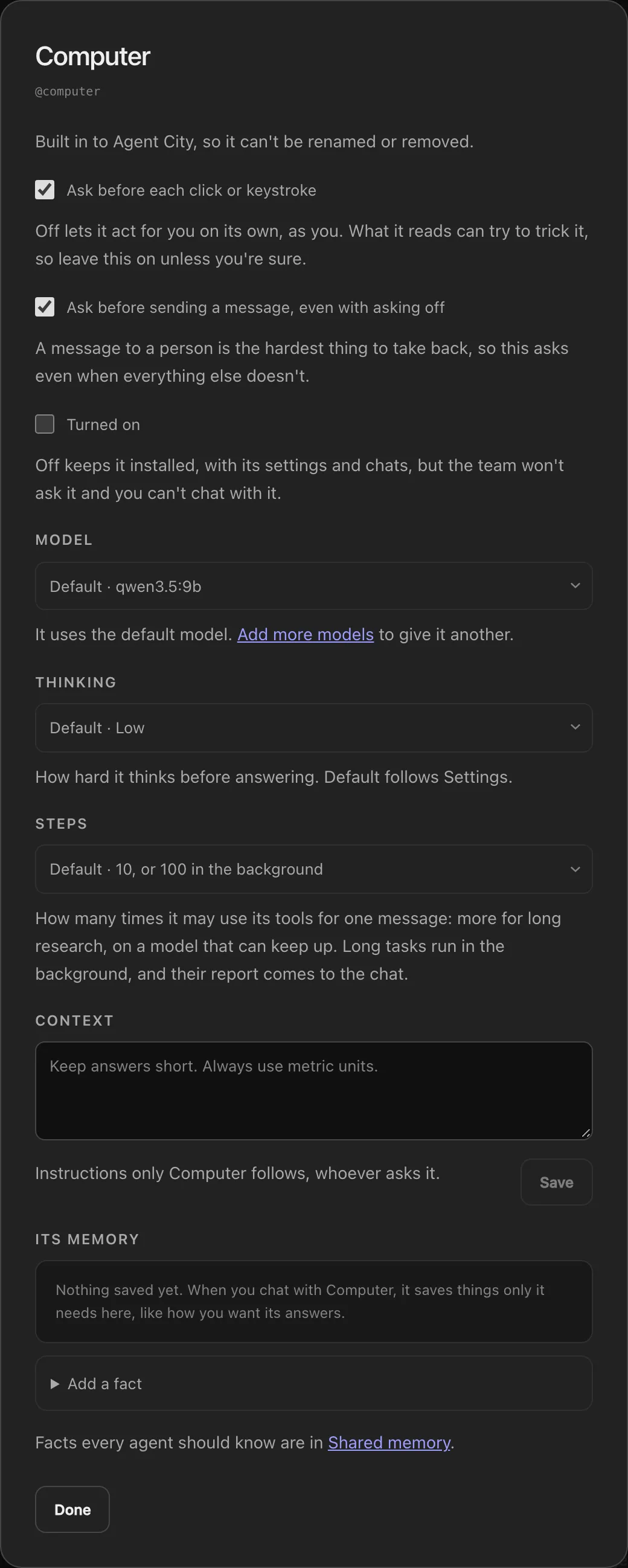
In its settings (the cog on its card):
| Switch | Default | Meaning |
|---|---|---|
| Ask before each click or keystroke | On | Off lets it act for you on its own, as you. |
| Ask before sending a message, even with asking off | On | A message to a person is the hardest thing to take back, so this still asks when everything else doesn’t. |
| Turned on | Off | Off keeps it installed, with its settings and chats, but nobody can ask it. |
Limits
Section titled “Limits”- Apps that don’t describe themselves to accessibility (some games and canvas-drawn apps) can only be looked at, not used.
- In an automation, its approvals wait in Activity like any other.