Chats
The Chats section of the sidebar holds your conversations. There are three kinds.
My team
Section titled “My team”Your main chat, with every agent available. The coordinator decides who to ask for each message. It can’t be renamed or deleted. Clear messages empties it.
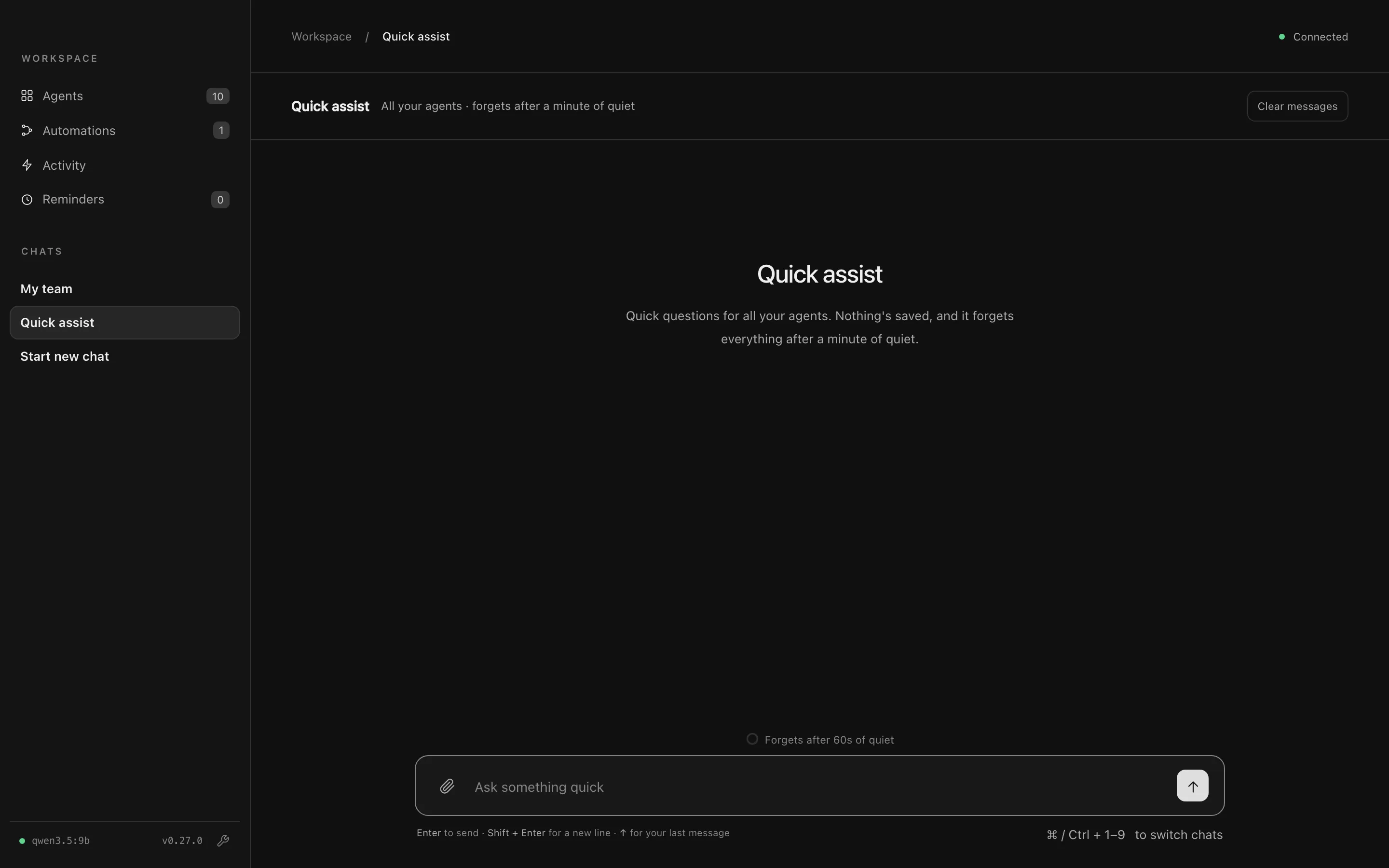
Quick assist
Section titled “Quick assist”For quick questions you don’t need to keep. Every agent is available, as in My team, but nothing is saved, and it forgets everything after a minute of quiet. A countdown above the message box shows the time left, and typing keeps it going.
Chats you start
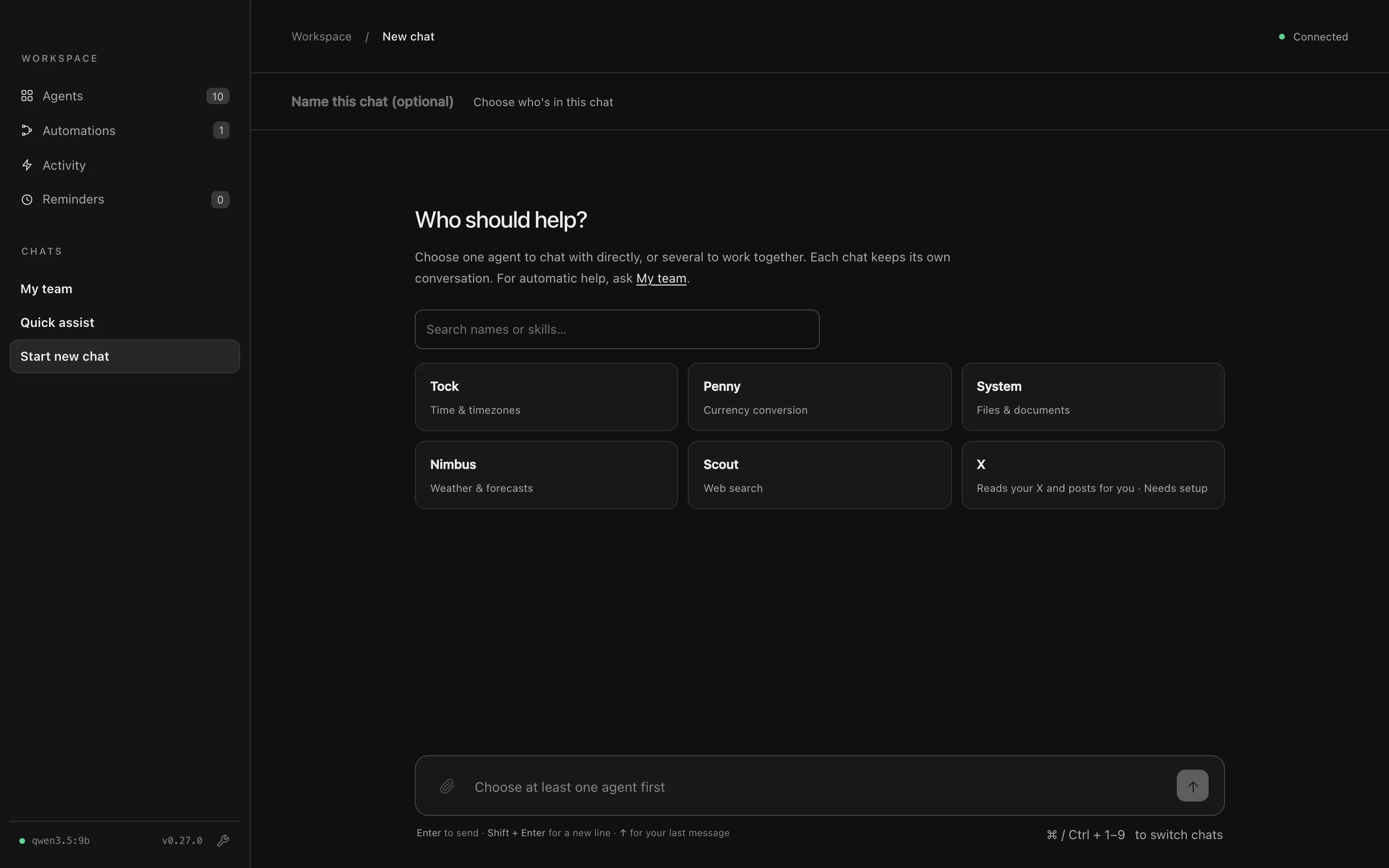
Section titled “Chats you start”Start new chat opens a new conversation. Under Who should help? you can:
- pick one agent to talk to it directly, or
- pick several to have a coordinator that only uses those agents (they can still ask others for help).
Name the chat if you like, then send your first message.
In the sidebar you can rename a chat, delete it, or pin it to the top. When you have several chats, the search button beside Chats finds one by name.
Files and pictures
Section titled “Files and pictures”Add files to a chat with the paperclip, by dragging them onto the chat, or by pasting.
- Documents: text, code, PDF, Word and Excel files, up to 5 MB each and 20 per chat. Every agent in the chat can read them. Small files go straight into the conversation; bigger ones are searched, and the agents read the parts they need.
- Pictures: PNG, JPEG, GIF and WebP, for models that can see images. If your model can’t, the chat tells you.
Only the text extracted from a file is kept, and files are deleted when their chat is. What’s inside a file is always treated as information, never as instructions.
Long tasks in the background
Section titled “Long tasks in the background”Ask for something big, like “do some market research on…” or “research … in depth”, and the agent can start it as a background task. The chat carries on while it works, and the report is posted to the chat when it’s done. See Long-running agents.
Charts and Activity posts
Section titled “Charts and Activity posts”- Ask any agent for a chart (“make me a bar chart of my sales: Jan 10, Feb 14…”, “chart that”) and it draws one under its reply.
- Ask an agent to “post to Activity when you’re done” and it posts a short update to Activity.
History
Section titled “History”Chats are saved on your Mac, so they come back after a restart. Settings → Data & privacy → History sets how long messages are kept in every chat: don’t keep, 1 day, 7 days, 30 days, or forever. Shortening it deletes older messages. Memory and automation runs are kept separately.
Limits worth knowing
Section titled “Limits worth knowing”- An agent can use its tools up to 10 times for one message (you can change this per agent with Steps). If it hasn’t finished, it answers with what it found.
- Long conversations are trimmed to fit the model. Your memory is never trimmed.
- Within one chat, a message sent while a reply is still going waits its turn. Different chats run at the same time.